

Labels are everywhere — organizing files in the office, shipping packages, dressing up a bottle of wine or homebrew beer on the kitchen counter. But “just design a label” can mean very different things depending on your project: a quick address label for a mailing list, a polished design for a product you’re selling, or a batch of barcoded labels pulled straight from a spreadsheet.
Here’s a rundown of the tools that actually fit each of those jobs — from what’s probably already on your computer to dedicated label software built for specific use cases.
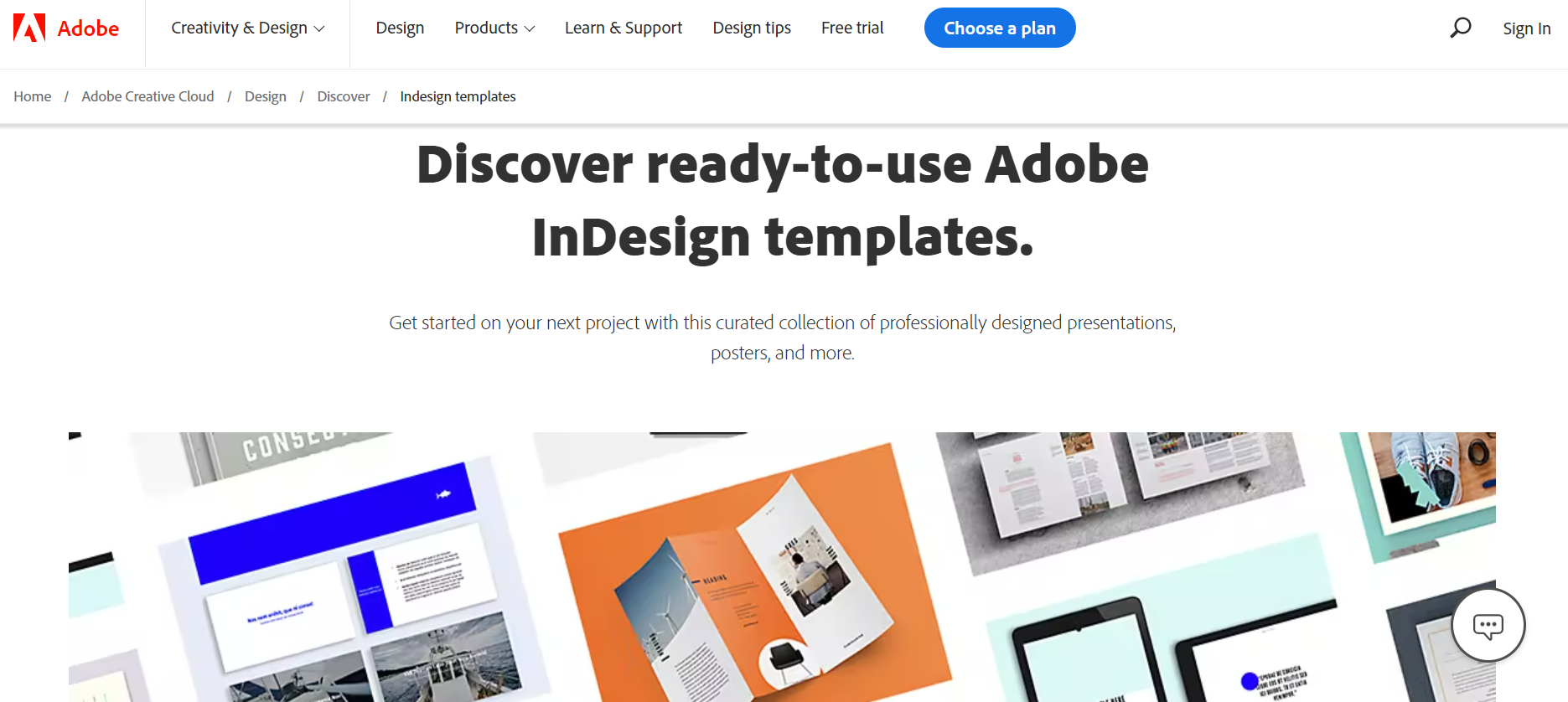
InDesign: The Professional’s Choice
Adobe InDesign is the industry standard for page layout and label design. It’s used by design professionals worldwide for both print and digital projects, and it can handle virtually any level of complexity your label design throws at it.
The trade-off is the learning curve: InDesign is genuinely professional software, which means it comes with a lot of tools and a real learning investment. It’s also subscription-based, though a free trial is available before you commit.
The fastest way in is to start from a template rather than a blank canvas — there are plenty available both on Adobe’s own site and through third-party marketplaces. Pick something close to what you want, then adjust the size, text and imagery from there.
VistaCreate: Free and Fully Online
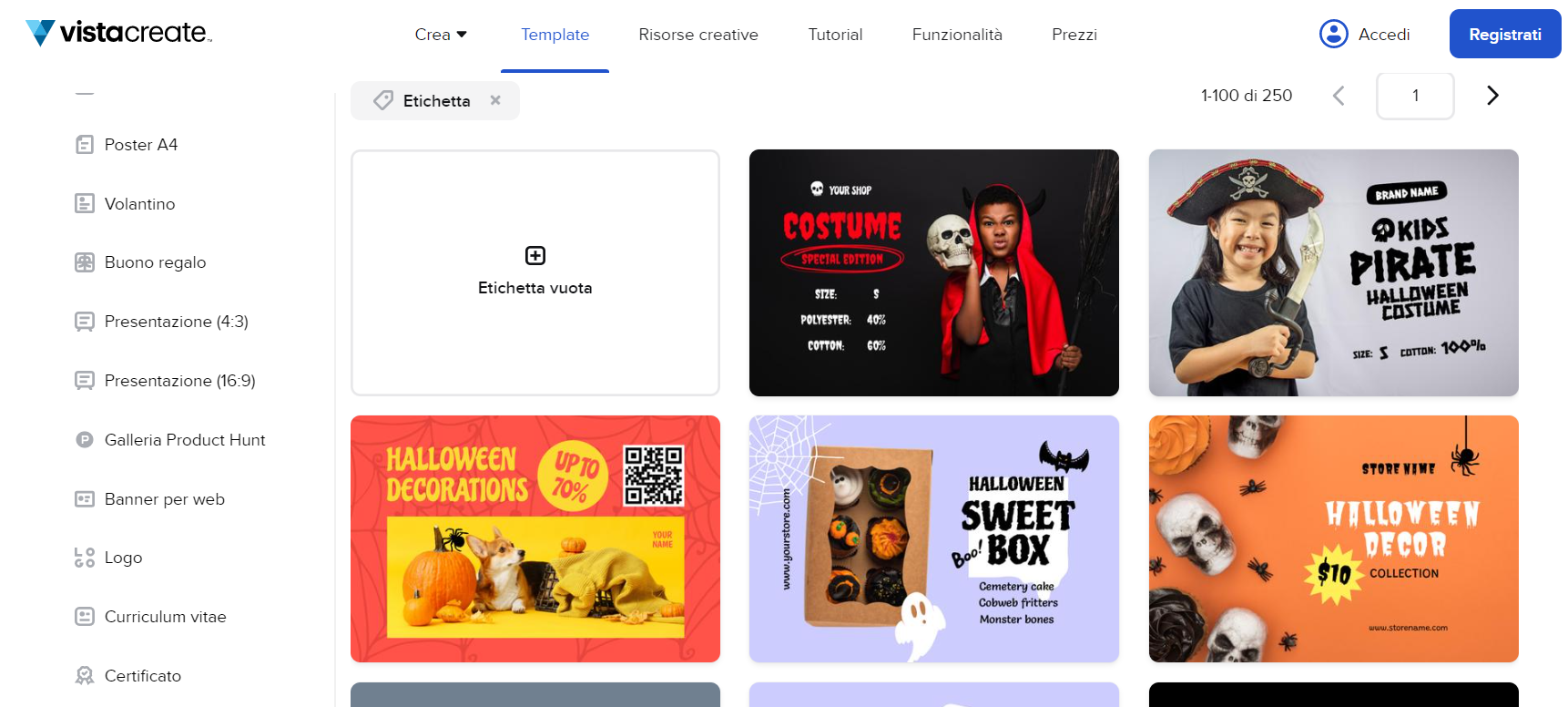
VistaCreate is a free, browser-based design tool that covers labels alongside social graphics, video and more. No installation required — just sign up and start.
Customizing a label is genuinely simple: swap the background from a large library of royalty-free images and patterns, adjust fonts, colors and dimensions, and if you already have a defined brand identity, upload it through the Brand Kit feature to apply consistently across your labels.
The standout advantage, beyond the free asset library, is the sheer number of starting templates — useful if you’re staring at a blank page and don’t know where to begin. Finished labels export as PDF, PNG or JPG, ready to send to print.
Printing Labels from Excel
If you’re working from a spreadsheet of names, addresses or product data, Microsoft Excel — already on most computers — is a surprisingly practical label tool.
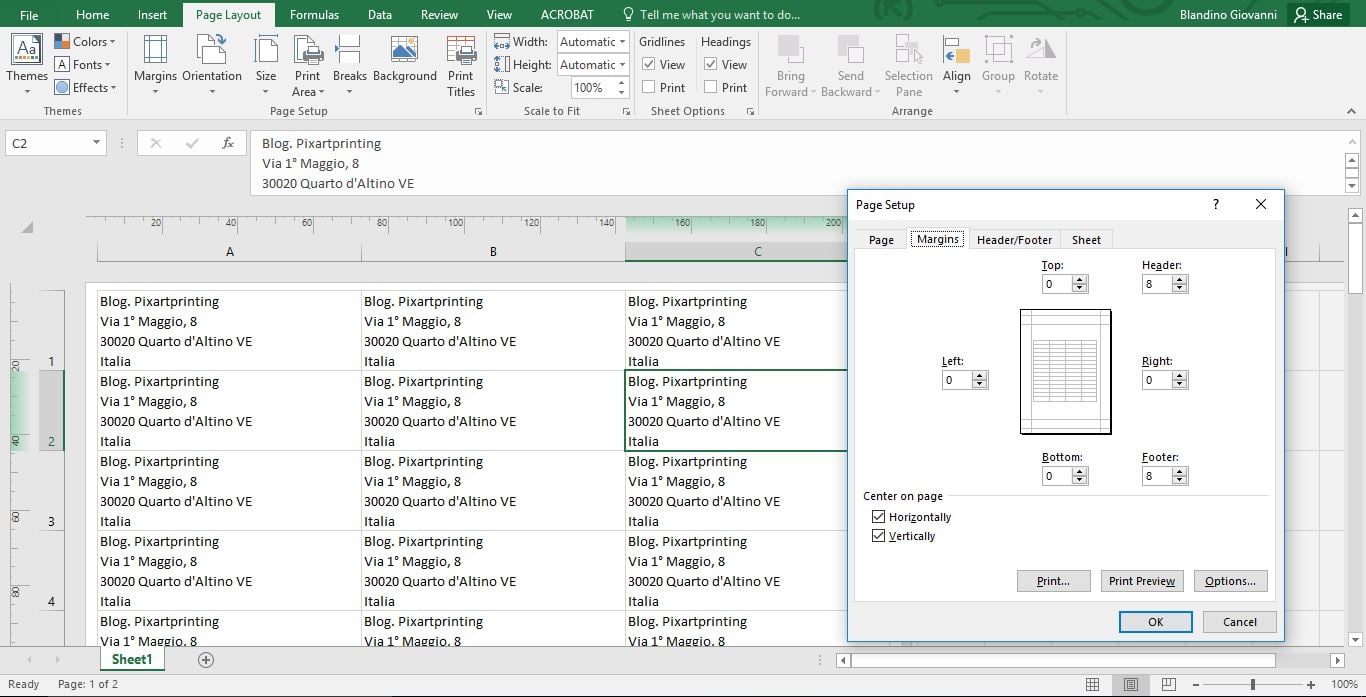
Excel trades design flexibility for speed and precision when you’re printing the same label layout across a large list. Here’s the basic setup for a standard US Letter sheet using a common label size, like Avery 5160 (1″ x 2-5/8″, 30 labels per sheet):
- Arrange your label data into columns matching your sheet’s layout.
- Go to Page Layout, select all cells, and set row height and column width to match your label dimensions.
- Under Margins > Custom Margins, set margins to align with your label sheet’s actual layout, and check “Center on page” if needed.
- Before printing on actual labels, do a test print on plain paper and hold it up against your label sheet to check alignment.
For anything beyond simple, repetitive layouts, Word’s mail merge feature (below) gives you more control.
Printing Labels from Word
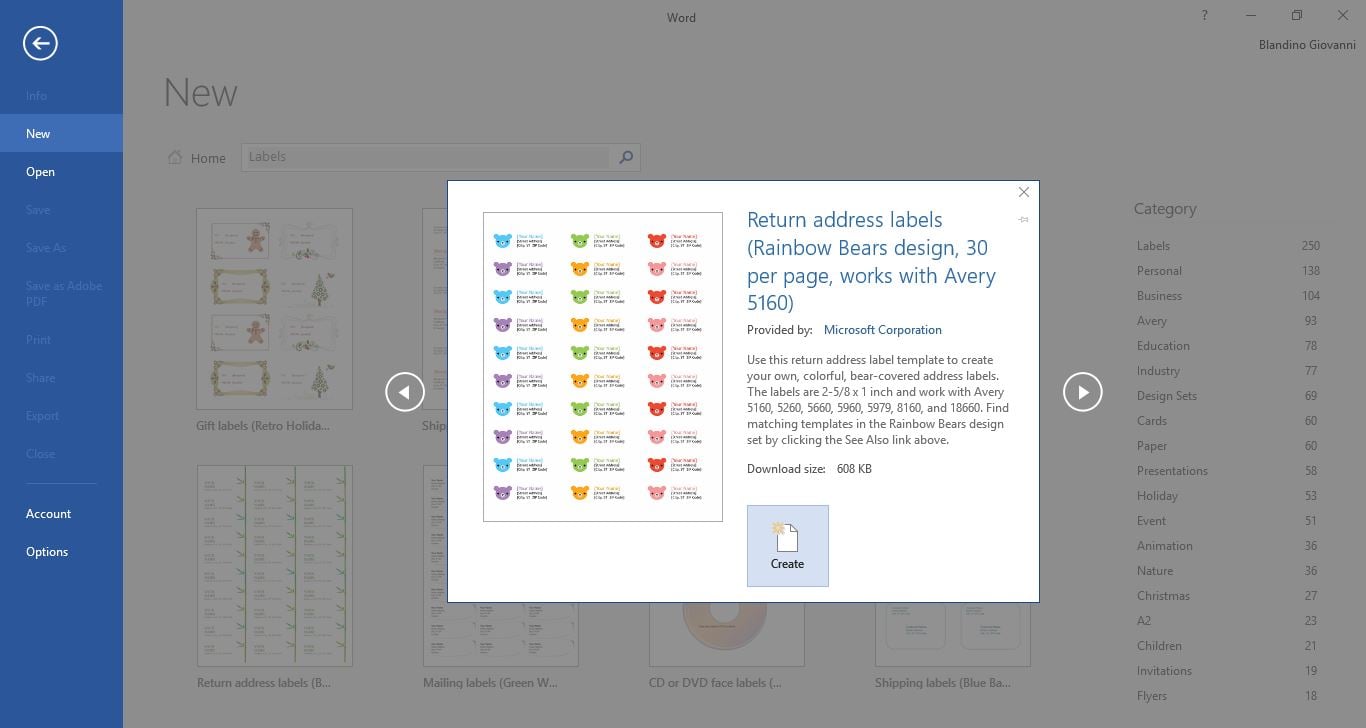
Microsoft Word offers more design flexibility than Excel — background, color, font size and images are all easy to adjust — and it comes with hundreds of built-in templates.
When you start a new Word document, search “labels” in the template gallery to browse presets by type: shipping labels, jar labels, gift tags and more, sized to standard US sheet formats like Avery.
For a small batch, you can edit label content directly and print. For anything pulling from a larger list — names, addresses, personalized text — use Mail Merge:
- Prepare your data in Excel, with a clear header row (Name, Address, Message, etc.).
- In Word, go to Mailings > Start Mail Merge > Labels, and select your label sheet size.
- Click Select Recipients > Use an Existing List to link your Excel file.
- Use Insert Merge Field to add the data fields you want on each label — text, and images if needed.
- Click Update Labels, then Preview Results to check everything looks right.
- Finish with Finish & Merge to print.
Canva: Fast, Template-Driven Design
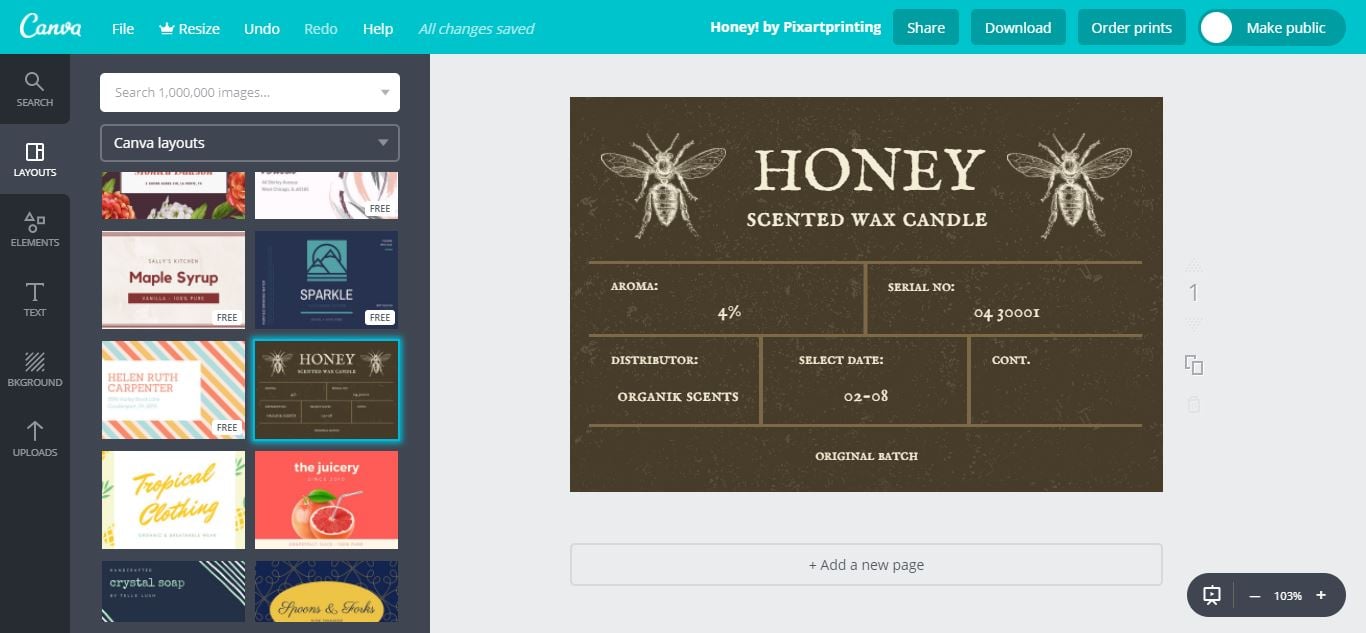
Canva is one of the most approachable online label tools available, free in its basic version with hundreds of ready-made templates.
Once you’ve picked a template, customizing it is mostly drag-and-drop: reposition photos and illustrations, swap text, add filters. One limitation worth knowing upfront — resizing a label beyond its template dimensions, or using premium templates and photos, requires a paid subscription.
Canva also supports real-time collaboration if you’re designing with a team, and finished labels export as PNG, JPEG or PDF.
Adobe Express: Simple and Fast
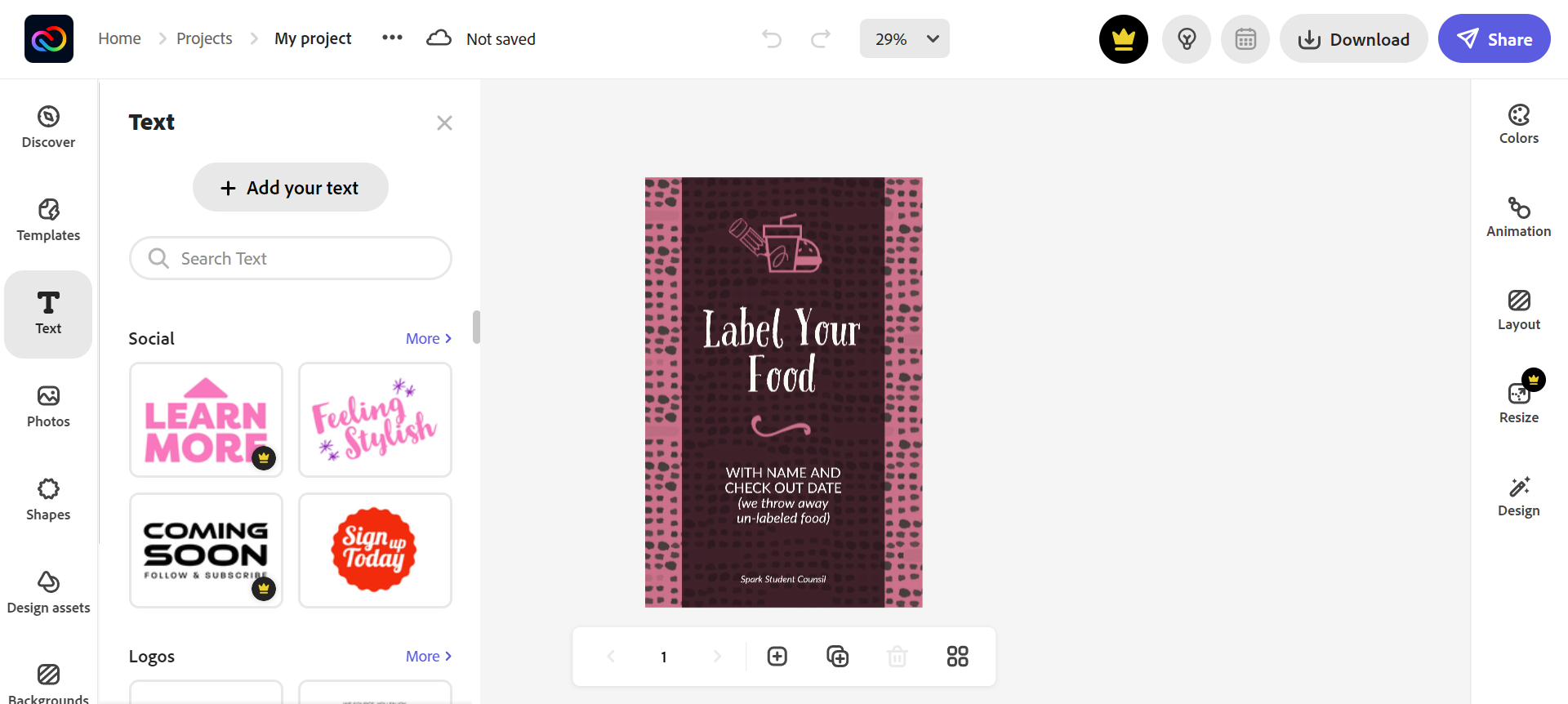
Adobe Express (formerly Adobe Spark) is a free, browser-based tool that’s genuinely quick to pick up — sign up with an email or a social account and you’re designing within minutes.
It’s a particularly good fit for beverage labels — wine, beer, spirits — as long as you don’t need a strict custom format, since resizing can be a bit limited here. Starting from a template and adjusting the background, text, images and shapes gets you to a modern-looking result fast, and the built-in design assets (decorative graphic elements) are a nice way to add a distinctive touch without starting from scratch.
LabelJoy: Built for Barcodes and Data
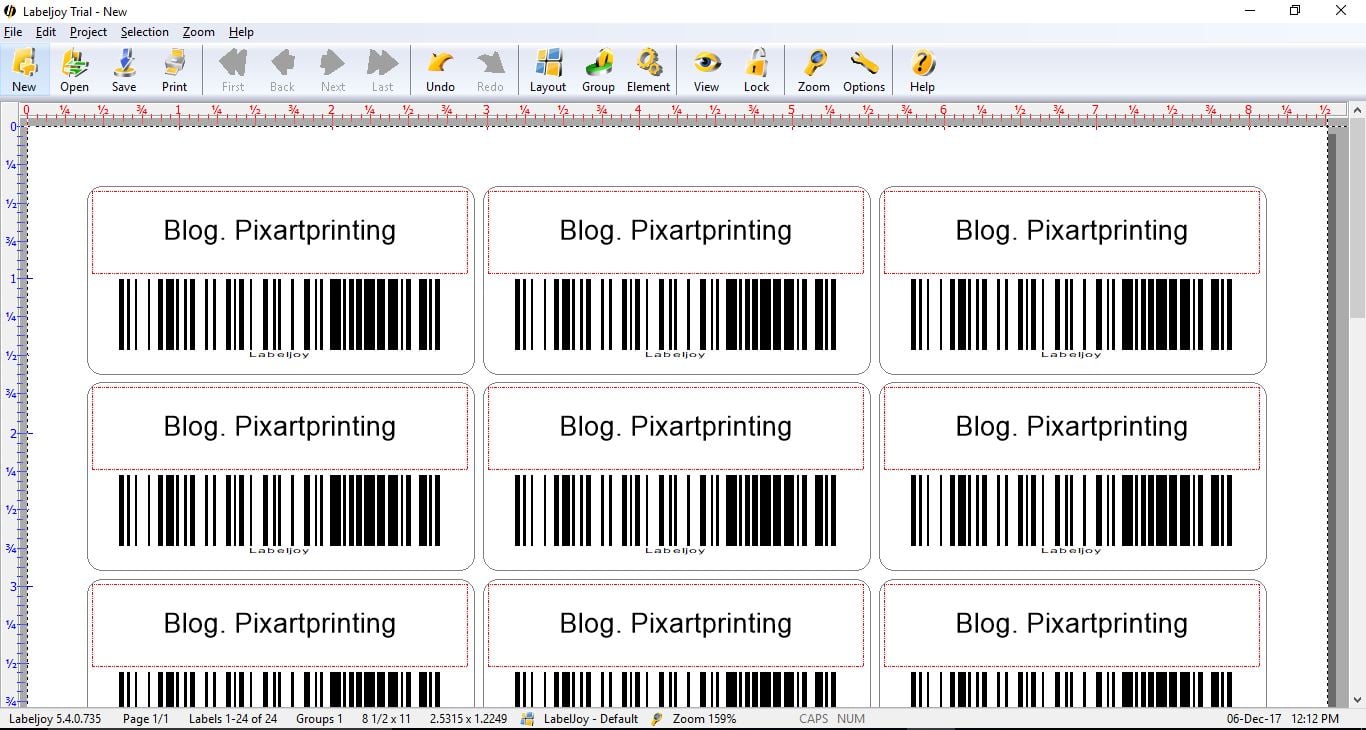
LabelJoy is aimed squarely at business use, especially if you’re working from a database — an Excel or CSV list — and need to generate barcodes or QR codes automatically.
A free trial is available, though it adds a watermark to your output. Paid plans unlock the full toolset: support for virtually any standard label sheet on the market (or fully custom dimensions), connections to major database formats (Access, Excel, Outlook, SQL Server, MySQL and more), and a wide range of barcode types. It’s a genuinely powerful tool if your labeling need involves variable, data-driven content rather than a single fixed design.
Beer Labelizer: Niche, But It Does the Job
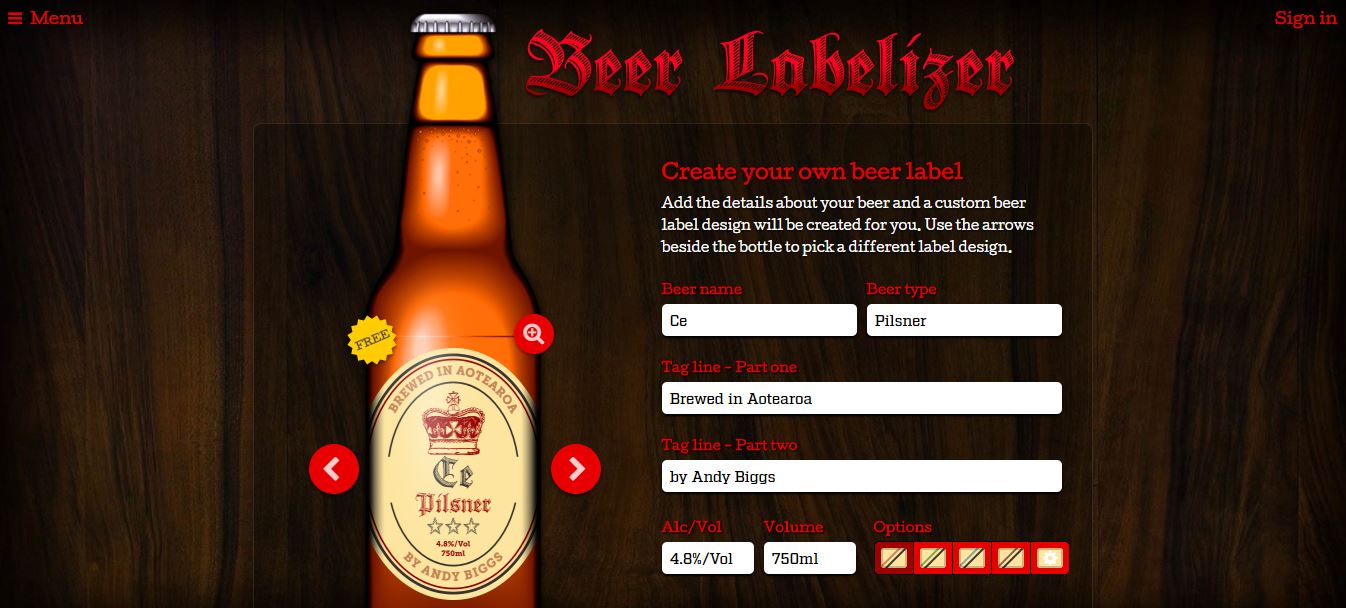
Beer Labelizer is exactly what it sounds like — software built specifically for homebrew beer labels, with a set of templates you can customize with your own text and images.
It’s a fun, purpose-built option if beer labels are specifically what you need, though customization is more limited than the general-purpose tools above, and some users have reported friction with account access — worth keeping in mind if you’re considering a paid plan.
Pixartprinting’s Free Online Editor
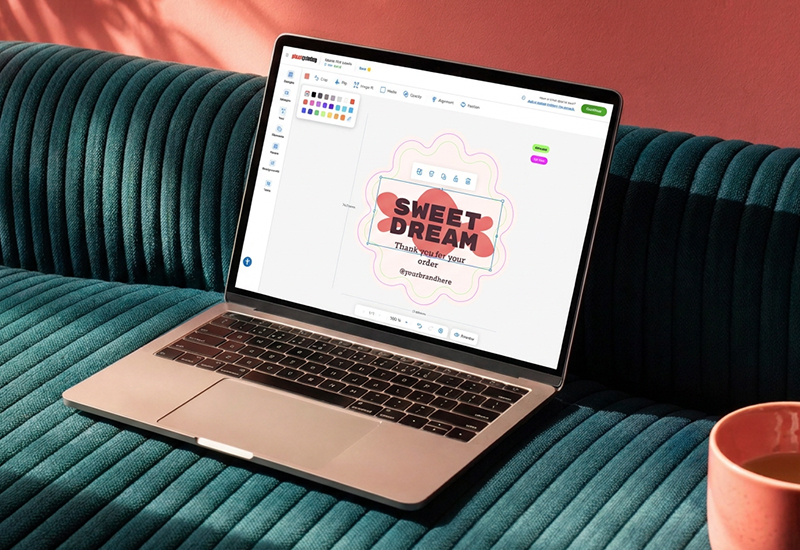
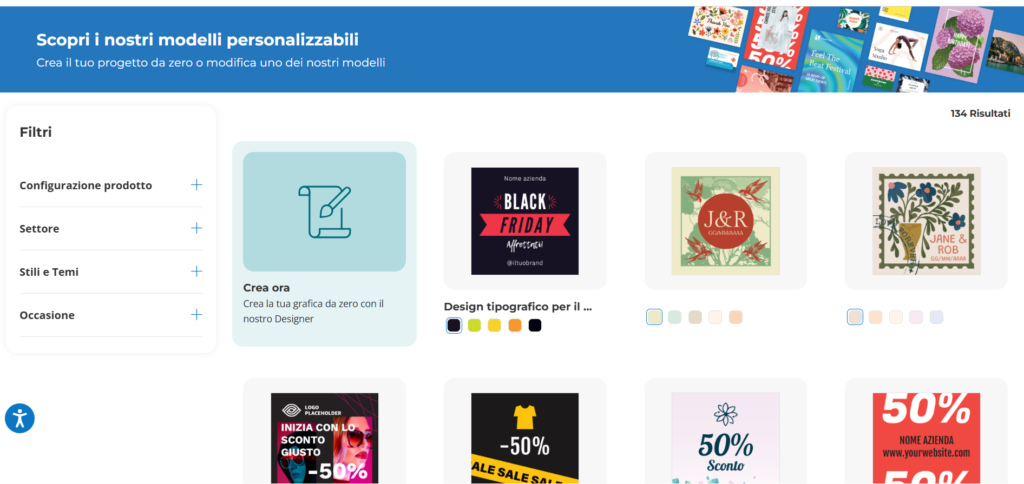
If you’d rather skip installing or signing up for a separate design tool altogether, Pixartprinting also offers its own free online Designer tool, built directly into the label ordering process. It’s aimed at exactly the gap between “I have no design file” and “I don’t want to learn new software just to make one label.”
With it, you can personalize your label directly on the product page — adding logos, text, graphics and brand elements — without leaving the site or exporting and re-uploading a file from elsewhere. It’s a particularly good fit if your label design is relatively simple and you’d rather go straight from idea to order in one place, rather than bouncing between a separate design tool and the printer’s upload page.
For more complex, highly customized designs, one of the dedicated tools above will likely still give you more control — but for a straightforward label, Pixartprinting’s own editor can save you a step.
From Design to Print
Once your label design is ready — whichever tool you used to get there — the design itself is only half the job. Getting it onto the right material, in the right size, for how it’ll actually be used (a wine bottle, a shipping box, a jar) is where a design file becomes a finished product.
You can upload a finished design or export straight from most of the tools above, then configure size, material and quantity through Pixartprinting’s roll labels, from a small test batch to a full production run.
FAQ
What’s the easiest software for a beginner to design a label? Canva and Adobe Express are both free, browser-based and built for quick results without a learning curve — either is a solid starting point if you don’t have design experience.
Can I print labels directly from a spreadsheet? Yes — Excel handles simple, repetitive layouts well, and Word’s Mail Merge feature is built specifically for pulling spreadsheet data (names, addresses, custom text) into a label template.
What software should I use if I need barcodes or QR codes? LabelJoy is built for exactly this — it connects directly to database formats and generates barcodes automatically, which general design tools like Canva or Adobe Express aren’t built to do.
Do I need professional software like InDesign to make a good label? Not necessarily. InDesign offers the most control for complex projects, but tools like VistaCreate, Canva and Adobe Express can produce professional-looking results for most label projects without the learning curve.
What file format should I export for printing? A high-resolution PDF is generally the safest choice for print; PNG or JPG also work for most online printing services, as long as the resolution is high enough for your final size.
Ready to turn your design into a finished label? Pixartprinting’s roll labels let you set the exact size, material and quantity for your project, whatever tool you used to design it.