

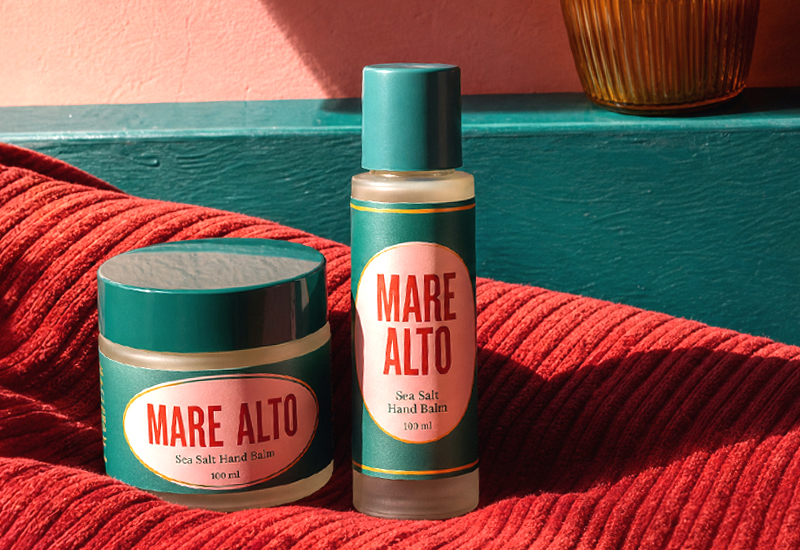
Creating a label isn’t just about putting a name on a product. It’s a strategic step: in many cases, the label is the first point of contact between what you sell and the person buying it.
Within just a few printed inches, a label needs to combine information, visual identity and the ability to catch attention. And when it works well, a label doesn’t just sit on a product — it helps sell it.
In this guide, you’ll learn how to create an effective label from design through to print with Pixartprinting, avoiding common mistakes and achieving a professional result even without advanced design skills.
What Is a Label and What Is It Really For?
A label is an element applied to a product that serves a dual purpose: to inform and to communicate.
On one hand, it provides essential information (ingredients, instructions, legal details). On the other, it conveys your brand positioning: quality, style, target audience and perceived value.
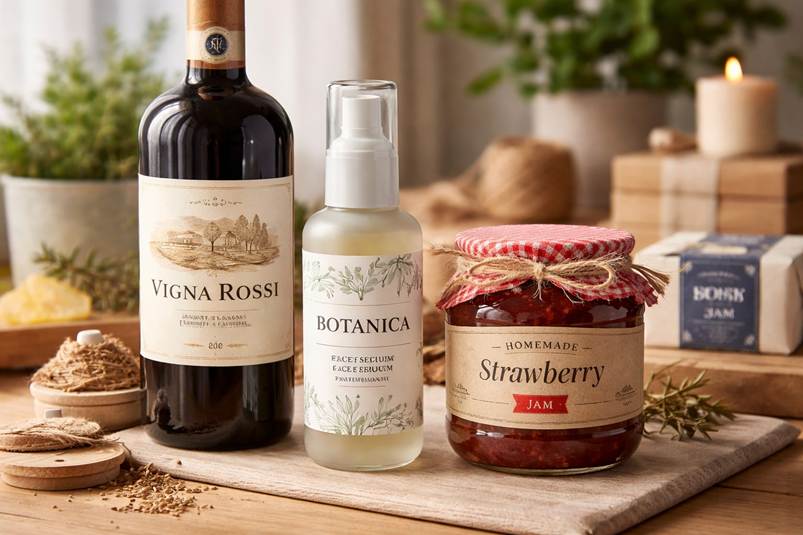
Think of a bottle of wine or a handmade cosmetic product. Very often, it’s the label that shapes the first impression. In just a few seconds, it needs to answer questions such as:
- Is this a quality product?
- Is it right for me?
- Is it worth the price?
That’s why designing a label isn’t just a visual task — it’s a communication decision.
What Should a Label Include?
Before working on the design, it’s essential to define the content clearly. An effective label always strikes a balance between complete information and visual clarity.
The key elements are:
- product name
- brand name or logo
- short description
- ingredients or materials
- usage instructions
- legally required information (where applicable)
However, not all labels are the same. The content varies depending on the type of product.
Practical examples
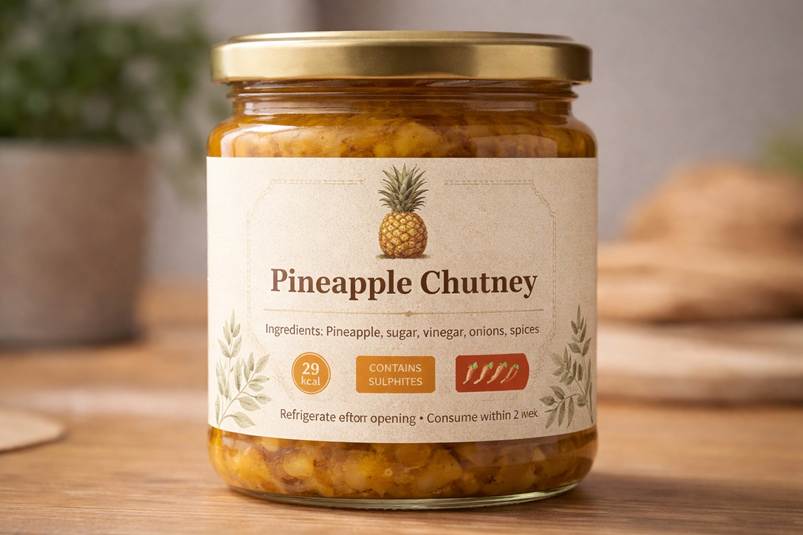
Food products Must include ingredients, allergens, nutritional values, expiry date and origin.
Cosmetics Require an ingredient list, directions for use, batch number and manufacturer details.
Handmade or creative products Can be more flexible, but still need to clearly communicate what the product is.
The most common mistake is trying to include too much information without a clear hierarchy. The result is a cluttered label that’s hard to read and ineffective.
The goal is always the same: make it easy for the reader to find what they need, instantly.
How to Create a Label Step by Step
Let’s move on to the practical side. Creating an effective label isn’t difficult, but it does require a clear process. Skipping steps is one of the main causes of avoidable mistakes.
Here’s how to do it.
Define the Purpose of Your Label
Before opening any design software, take a moment to think.
Ask yourself:
- Is this label meant to sell or simply inform?
- Will it be seen on a shop shelf or on delivered packaging?
- Does it need to grab attention or reinforce an existing brand?
For example, a product displayed in-store needs stronger visual impact than one already purchased online.
Defining the purpose helps you make better decisions about design, size and shape.
Choose the Format and Size
The format isn’t just an aesthetic choice — it’s a functional one.
Your label needs to fit the surface it will be applied to:
- curved surfaces like bottles or jars require more compact formats
- flat surfaces allow more flexibility
- flexible packaging requires extra attention to readability
Choosing the wrong format can undermine the entire project.
Shape matters too, and it’s worth knowing what’s actually available before you start designing. Pixartprinting offers labels in round, rectangle, square, oval, starburst, lollipop and fully custom shapes — designing with the final cut line in mind from the start saves rework later.
Design the Label
This is the most creative phase — and also where mistakes are most common.
A good label isn’t the most decorative one, but the one that is clear, readable and consistent.
To achieve this:
- use a clear visual hierarchy (title, key information, details)
- limit the number of fonts (no more than two or three)
- ensure strong contrast between text and background
- use white space to improve readability
A frequent mistake is trying to include everything at once. The result is a label that communicates nothing effectively.
A cleaner, more focused design will guide the viewer’s eye and improve clarity.
Prepare the File for Printing
This step is what separates an amateur result from a professional one.
To avoid printing issues:
- use a minimum resolution of 300 DPI
- work in CMYK color mode
- add bleed to prevent white edges
- respect safe margins
- export your file as a print-ready PDF
Many problems happen at this stage: cut-off text, color shifts or misaligned elements.
Always check a detailed preview before sending your file to print.
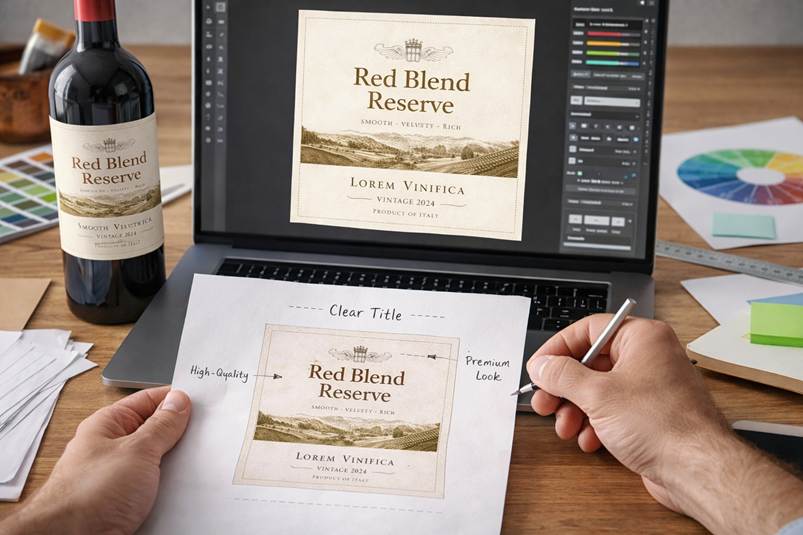
Common Label Sizes and Formats
If you’re unsure where to start, having reference sizes can help.
| Product type | Typical size (approx.) | Notes |
|---|---|---|
| Wine bottles | 3″ x 4″ | Standard front label |
| Cosmetics | 2″ x 2″ | Compact and clear |
| Jars | 2.4″ x 1.6″ | Suitable for curved surfaces |
| Packaging | Variable | Often custom |
These are indicative starting points, not fixed constraints — exact dimensions are fully configurable when you set up your order, so you can match your label precisely to your container.
How Roll Labels Work: Understanding Kiss-Cut
Most professional product labels — the kind used on bottles, jars, packaging and shipments — are printed as roll labels, and it helps to understand how they’re built before you order.
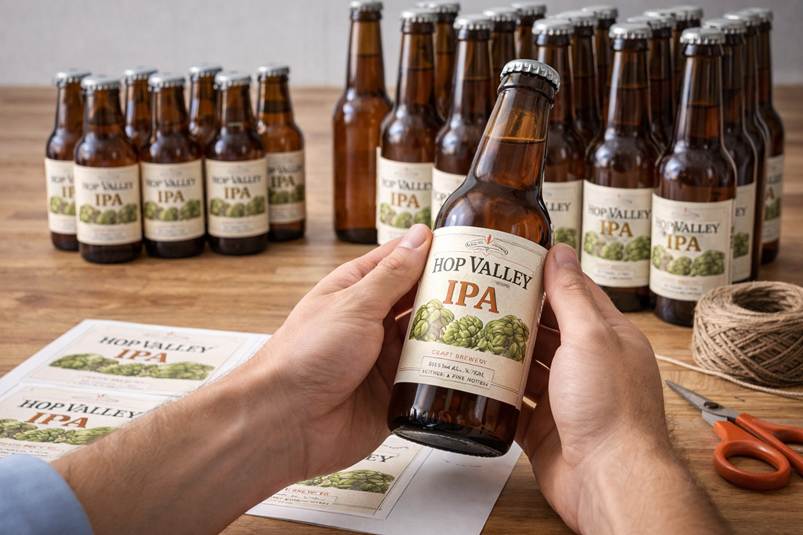
Roll labels use a kiss-cut: the blade cuts through the adhesive layer and the printed material, but not through the backing liner underneath. Each label stays attached to a continuous strip, ready to be peeled off one at a time — by hand, or automatically through a labeling machine on a production line. This is exactly what makes roll labels the standard choice for manufacturing, food and beverage, cosmetics and logistics, where labels need to be applied quickly and repeatedly.
A few practical details worth knowing before you order: Pixartprinting prints roll labels on a standard roll height of 13 inches, and the gap between individual labels on the roll can be adjusted from 0.16″ up to 3.93″, depending on your equipment. If you’re using an automatic labeling machine, it’s worth checking your machine’s requirements against these specs before finalizing your order.
Choosing the Right Label Material
The material you print on has a direct impact on how your label performs in the real world — and Pixartprinting offers several options, each suited to different conditions:
- Paper labels — a classic, natural finish, best suited to products kept indoors and in dry conditions. A strong fit for artisan and handcrafted goods.
- Waterproof labels — engineered to withstand immersion, condensation and damp environments, ideal for beverages, outdoor products and cleaning supplies.
- Clear BOPP labels — a transparent polypropylene film that creates a “no-label” look, letting the product itself show through.
- White BOPP labels — a glossy white plastic film that delivers bright, vivid colors and holds up well in wet or damp conditions.
- Metallic silver labels — a premium metallic-effect finish, popular for cosmetics, spirits and luxury goods. If the label needs to fully cover printing or color underneath, add the white printing option so the design sits on an opaque base.
- Holographic labels — a rainbow-effect film that catches the light, often used for promotions and eye-catching packaging.
A simple way to choose: think about where the label will actually live. A label for a refrigerated bottle needs to withstand moisture, while a label for internal packaging can be simpler. Print quality is part of the overall result — even a great design can fall short if printed on the wrong material.
Step-by-Step: How to Order Custom Labels from Pixartprinting
Once your design is ready, here’s exactly how the ordering process works:
- Choose your product. Start from roll labels for production-line and repeat applications, or browse by shape, material or use case if you already know what you need.
- Configure your options. Select quantity, size, shape, material and finish. Roll labels start from just 100 copies, so even smaller businesses can order a professional run without excess stock.
- Download the template and instructions to set up your artwork file correctly — bleed, safe margins and color mode included.
- No design file yet? Use the free online editor to create your label directly in the browser, or follow the guides for setting up a custom shape cut or white printing if you’re working in your own design software.
- Upload your file and place your order. Your labels are delivered straight to your door.
Pricing is calculated in real time based on quantity, size, material, shape and finish — there’s no fixed price list, and the cost per label drops as your order size increases.
Common Mistakes to Avoid When Creating a Label
Many issues come from small mistakes that have a big impact on the final result.
- text that is too small Risk: customers can’t read key information and may perceive the product as low quality
- too much information Risk: the main message gets lost and the label becomes confusing
- poor contrast Risk: even a well-designed label becomes hard to read
- incorrect sizing Risk: the product looks unbalanced or unprofessional
- poorly prepared print file Risk: color issues, cut-off elements and the need to reprint
The key is to identify these problems during the design phase, not after printing.
Practical Tips for an Effective Label
If you want to go beyond the basics, a few details can make a real difference.
Always think about the label in its real context — not just on screen, but on the product itself.
Also:
- analyze similar products to see what works
- stay consistent with your brand identity
- test different versions before finalizing
- check readability from a distance
- print a sample before full production
An effective label isn’t the most complex one, but the one that communicates instantly.
In many cases, the label — more than the product itself — influences the first purchase decision. That’s why it’s worth investing time, testing and attention into getting it right.
From Idea to Print: Make Your Label
Creating an effective label is about more than good design — it’s about understanding your product, choosing the right material and format, and preparing a file that holds up in production. Ordering online with Pixartprinting brings all of that together in one place: real-time pricing, a free design editor, and a catalog built to match labels to the way they’ll actually be used, from a single handmade batch to a full production line.
If your design is ready, you can configure material, shape, size and quantity directly through Pixartprinting’s custom labels service.
FAQ
How do you create a custom label? Define the purpose, choose the format and size, design the label and prepare the file for printing.
What file format should I use for printing labels? A high-resolution PDF (300 DPI) with proper bleed and margins is the best option.
What size should a label be? It depends on the product. Wine labels are often around 3″ x 4″, while cosmetics and jars use smaller formats — exact sizes are configurable when you order.
How do I order custom labels from Pixartprinting? Select your product, configure size, material, shape and finish, then upload a print-ready file or design one with the free online editor. Roll labels start from 100 copies.
Can labels be applied directly to food? No. Labels should never be applied directly to food — they’re designed for packaging, jars, wrappers or other product surfaces, not for direct food contact.
How many rolls will I receive if I order a large quantity? Labels are printed on a single roll wherever possible. Very large orders may be split across two or more rolls, or you can request smaller sub-rolls when placing your order.
Can I create labels without being a designer? Yes — Pixartprinting’s free online editor lets you design a standard-shape label directly in your browser, no design software required.